Layout library
13 App Store Screenshot Layouts
These are the layout patterns that recur across high-converting App Store listings. Pick the one that matches the narrative job of each frame, then generate the screenshot.
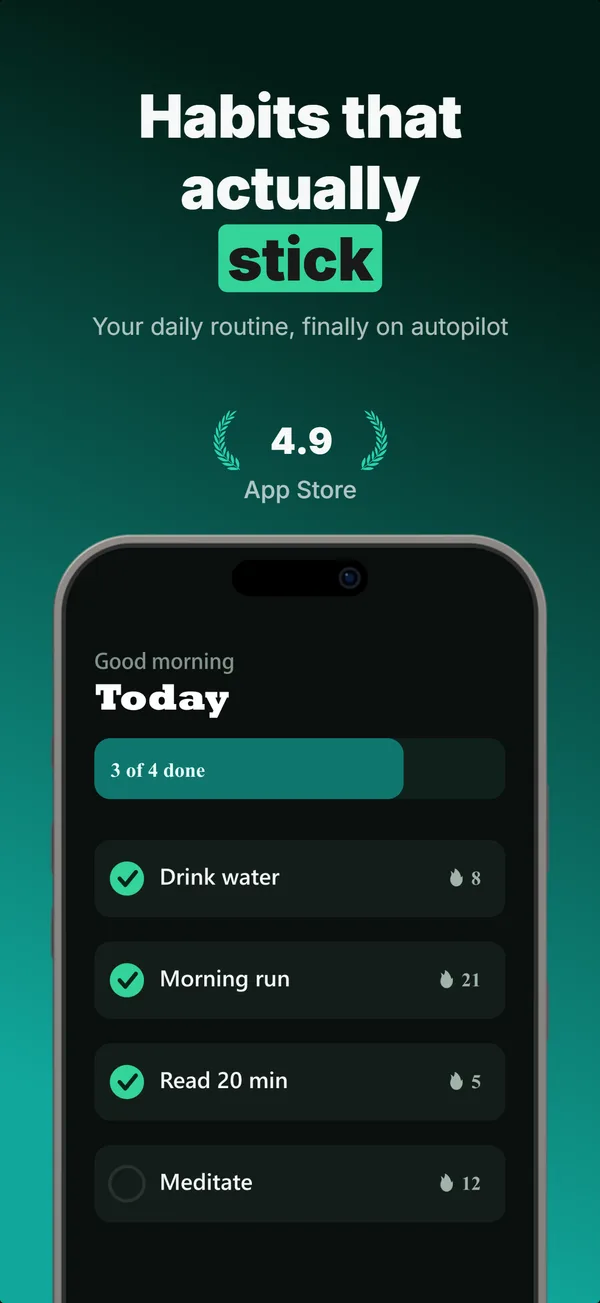
Device Hero Layout
Centered flat device with a strong headline above. The product-forward hook layout: frame 1 is the one screenshot almost every App Store visitor sees before deciding.
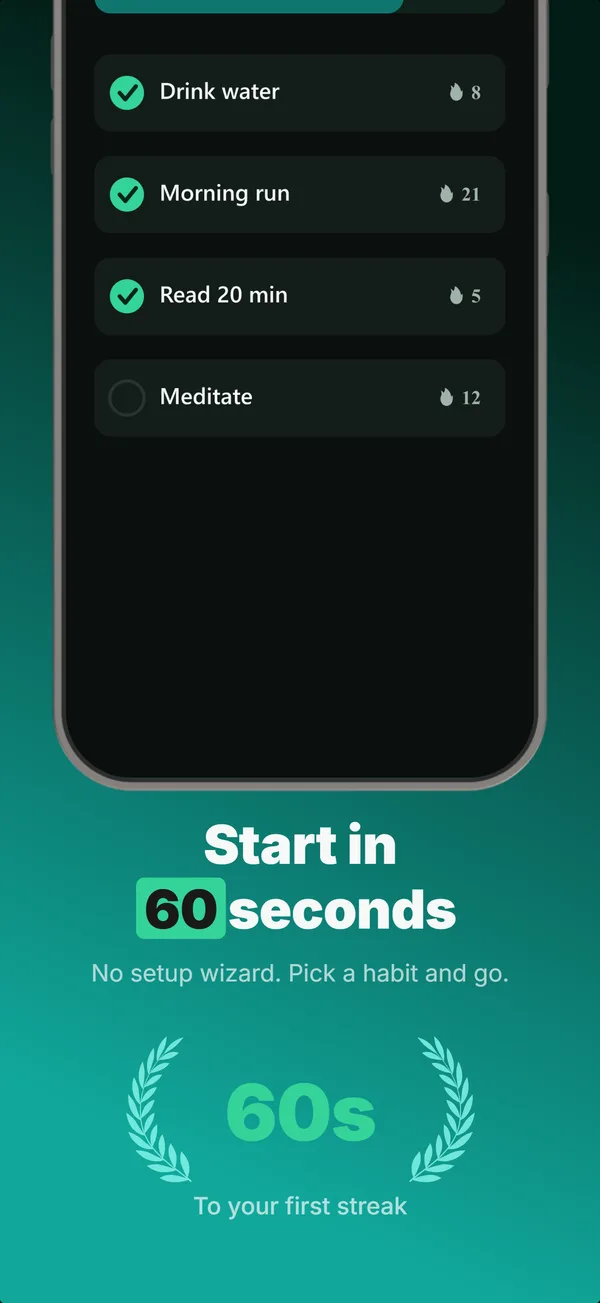
Screen Hero Layout
Top-clipped device, centered headline, one hero stat. A frame-1 hook for when the app screen itself is the strongest first impression.
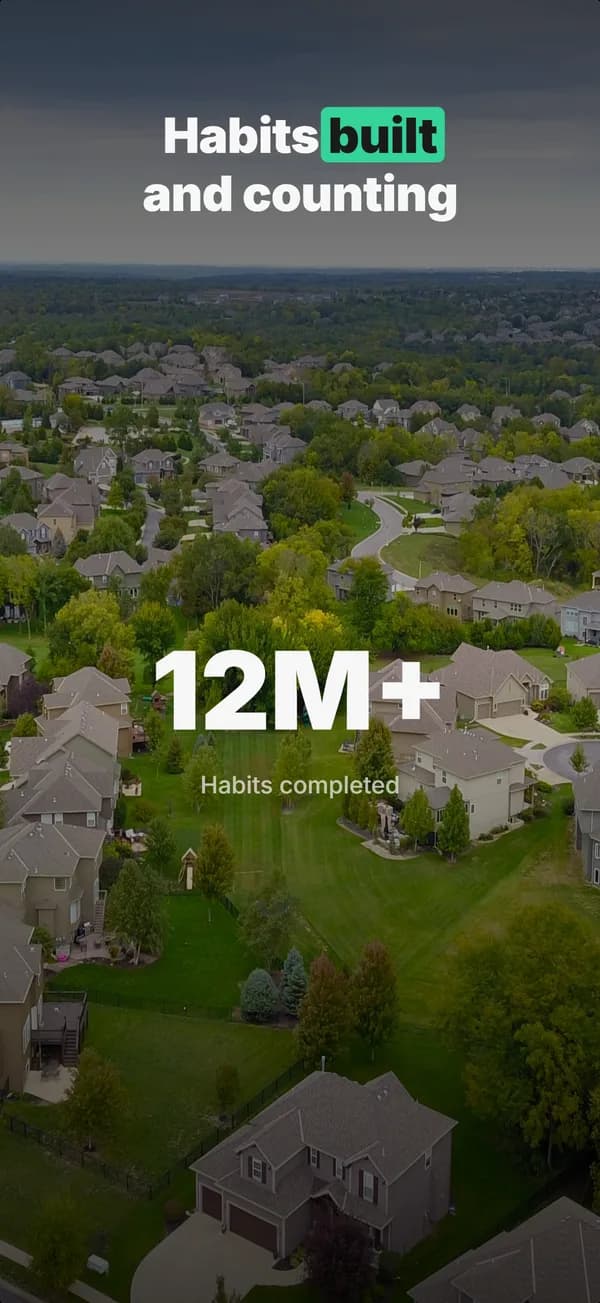
Stats Hero Layout
Giant centered stat or number, no device. The hook layout when the metric itself is the selling point: 1M users, 10K reviews, 4.8 stars.

Lifestyle Hero Layout
Full-bleed photo with text overlay in the lower third, no device. The mood-first hook layout for lifestyle apps where context beats product shots.
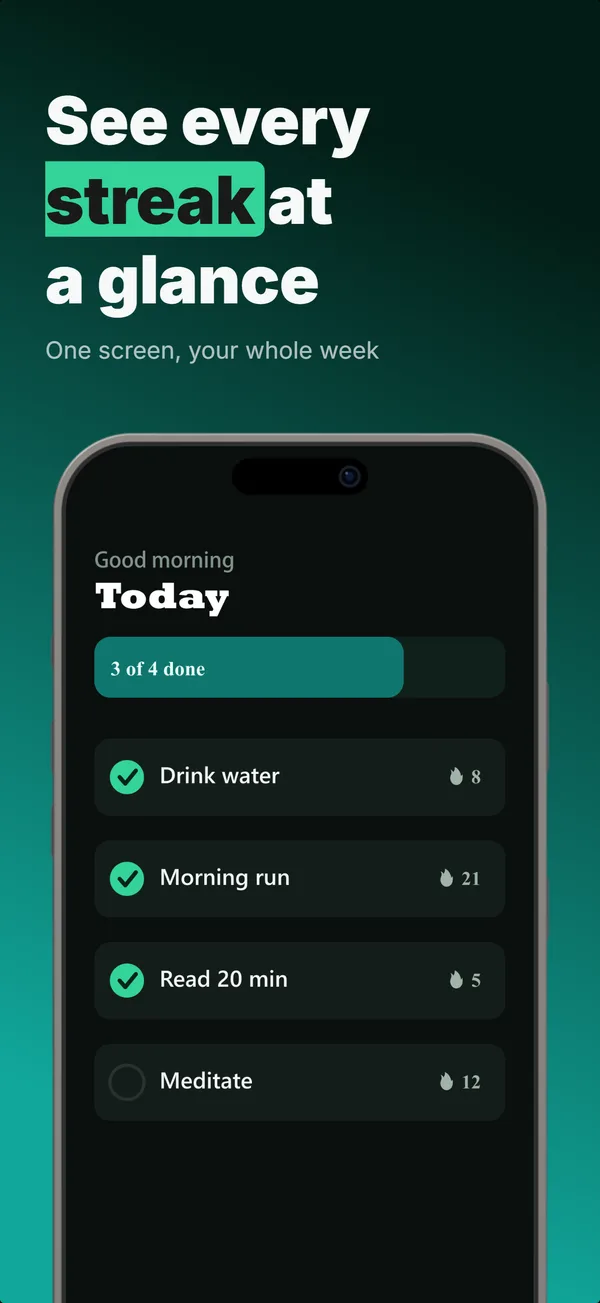
Text-Top, Device-Bottom Layout
Headline at the top, flat device anchored at the bottom. The default educate layout for frames 2 and 3 where feature explanation has to land before the scroll-off point.
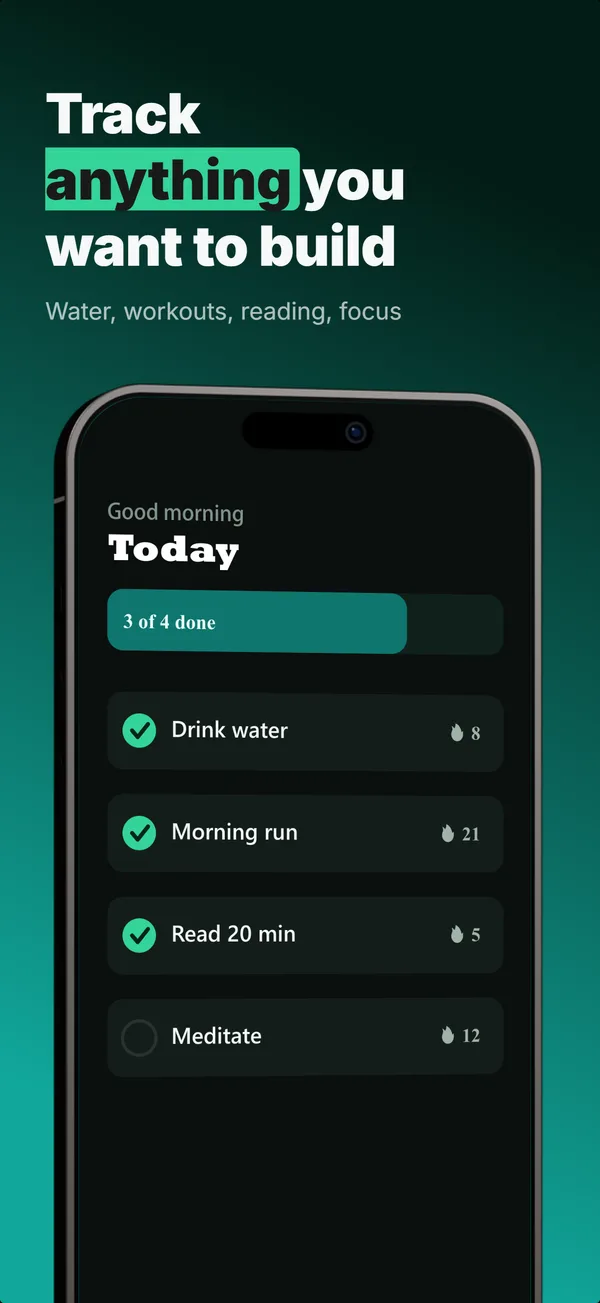
Text-Top, Tilted Device Layout
Headline at the top, device rotated 15-30 degrees for dimensional depth. Same educate role as text-top-device-bottom, but adds visual energy.
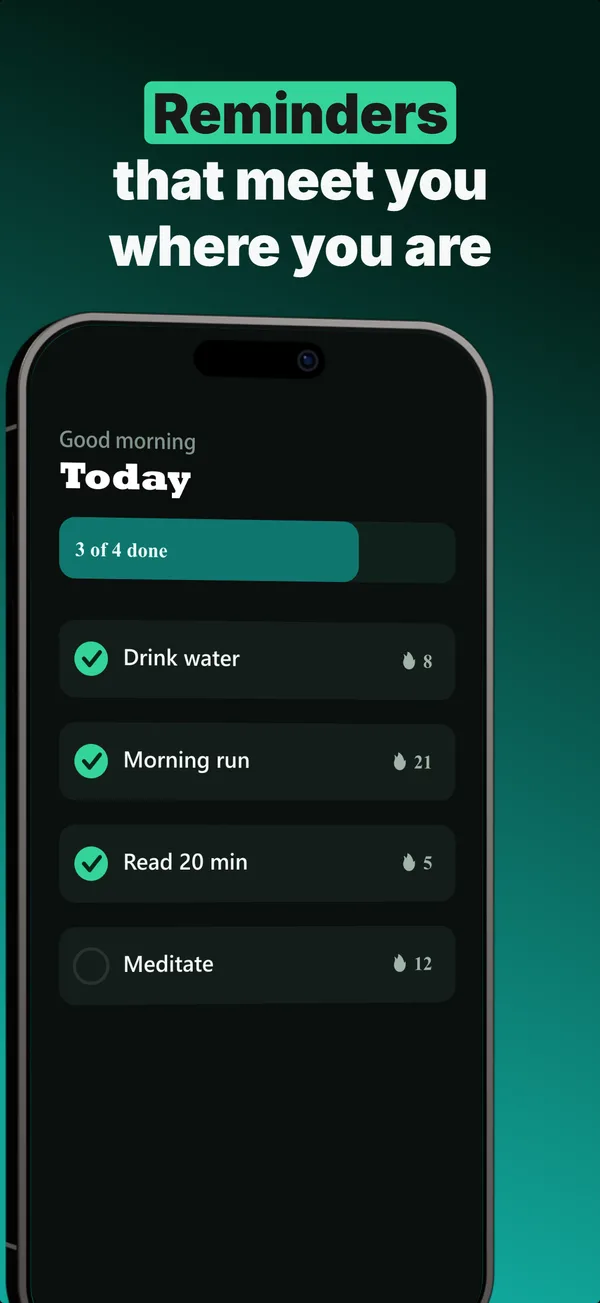
Annotated Feature Layout
A tilted device with a side callout chip linked by a connector line. The educate layout for pointing at one specific feature.
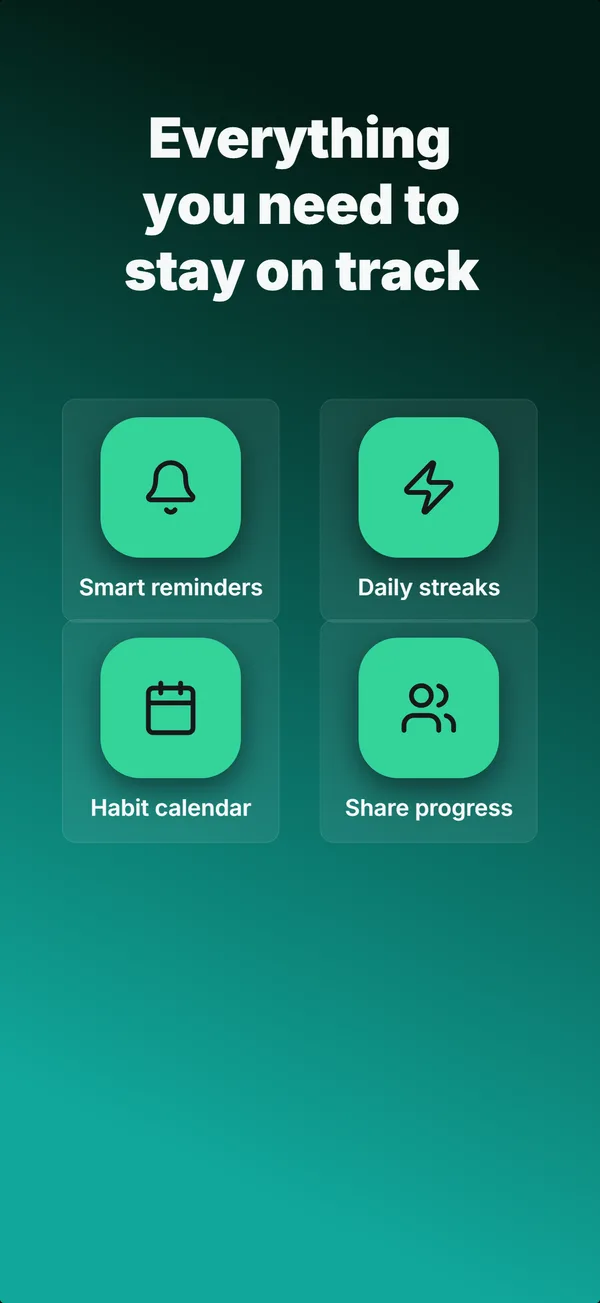
Feature Grid Layout
A 2x2 or 2x3 grid of icon-and-label tiles, no device. The depth layout for showing four to six features in one frame.
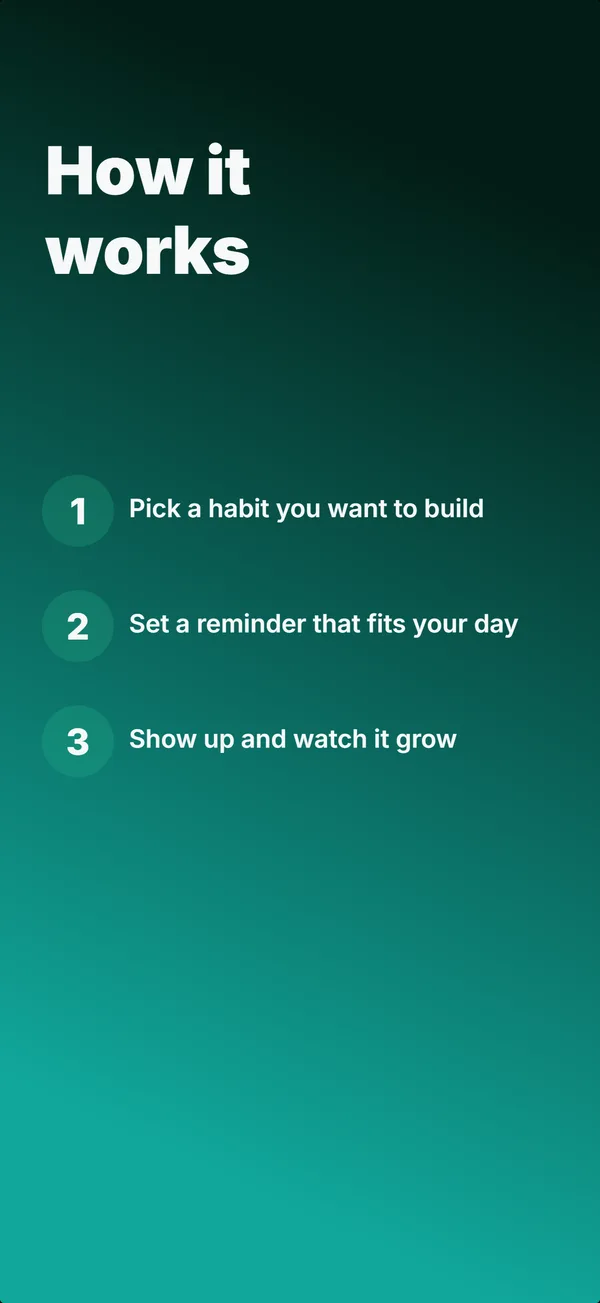
Step Flow Layout
A headline above three numbered steps, no device. The "how it works" layout for apps where onboarding clarity sells.
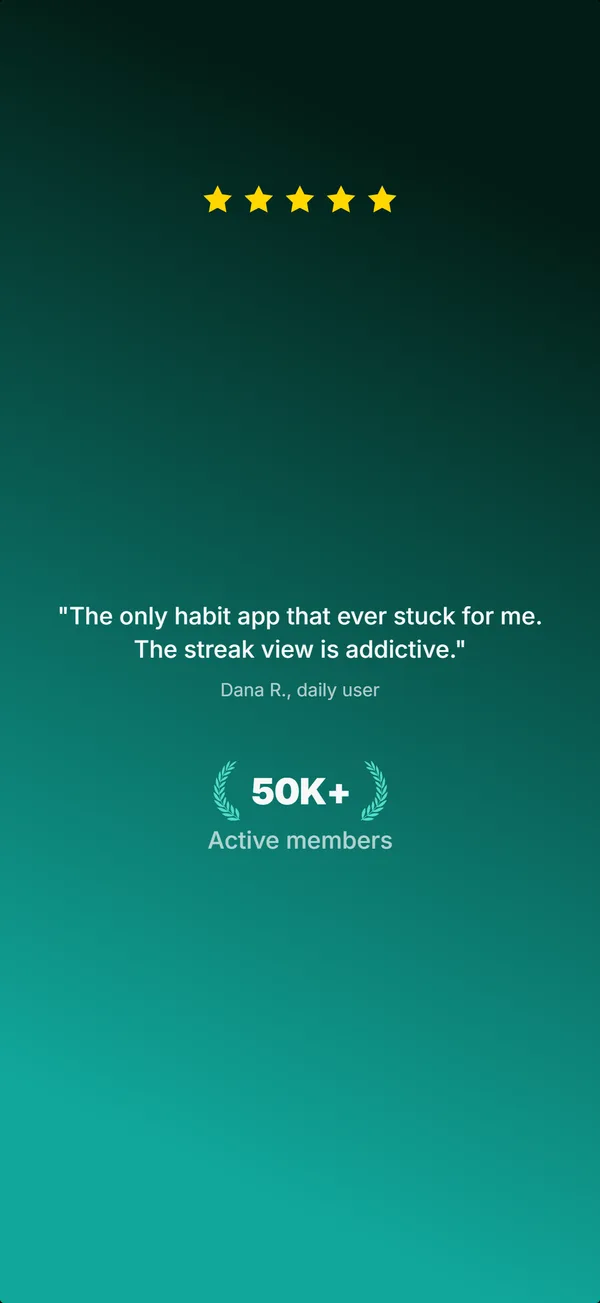
Social Proof Layout
Star rating, customer quote, and laurel-wrapped stats, no device. Built for the prove job: credibility lands by frame 3, the last screenshot the App Store shows in search results.
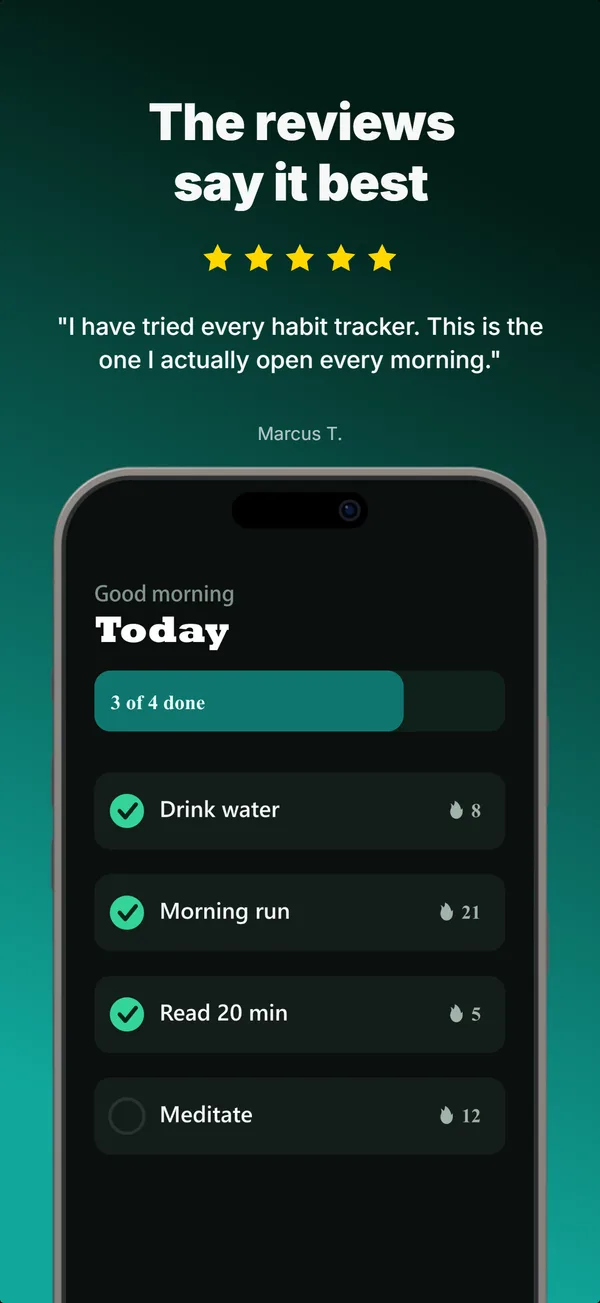
Review Clip Layout
A star rating and a real customer quote above a bottom-clipped device. The prove layout that pairs a testimonial with the product in one frame.
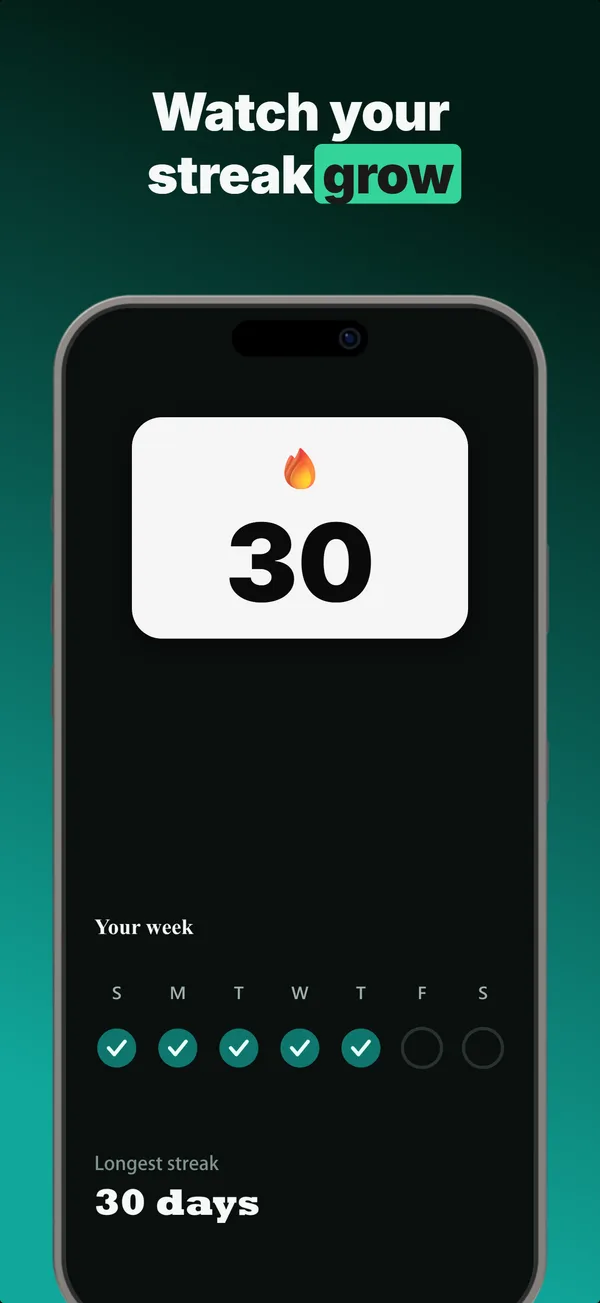
Metric Badge Layout
A centered device with a chunky achievement-card badge over its upper screen. The prove layout when one number is the whole story.
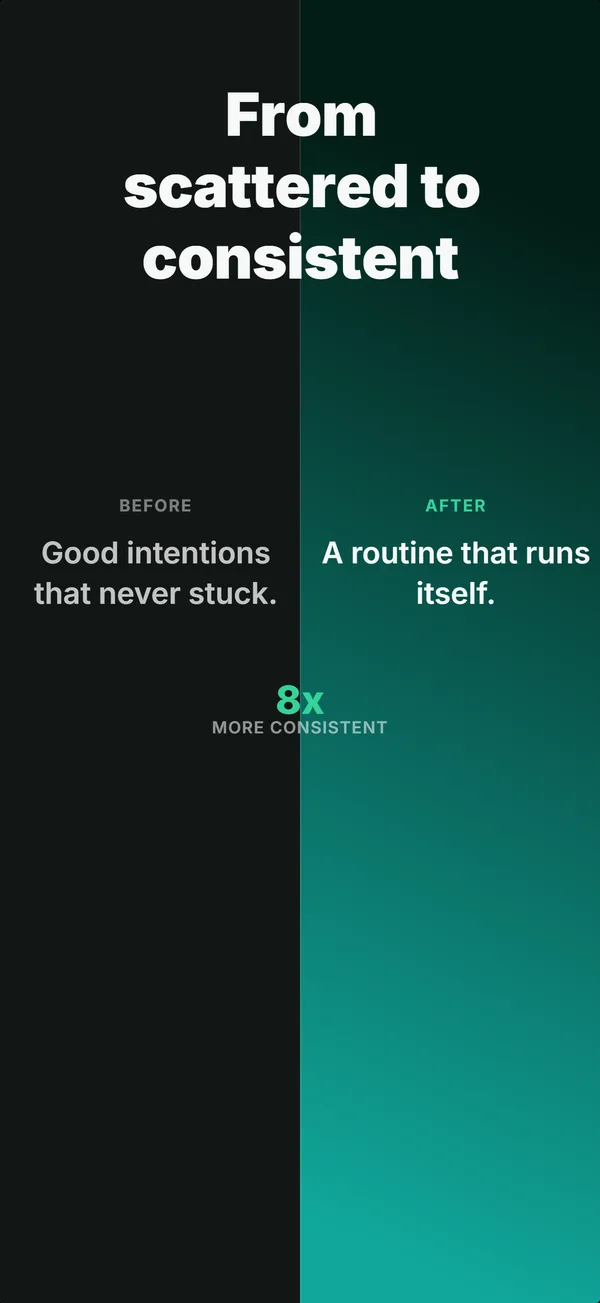
Before-After Layout
Split frame: dark before-half on the left, bright after-half on the right. The prove layout for transformation apps where the gap is the value.
Don't pick a layout. Get a set.
The builder picks the right layout for every frame in your set automatically. Describe your app, get a 5-frame gallery that uses each layout in the slot where it converts.
Get screenshotsSee these layouts in full example sets, or read the 7 layouts that convert guide.