App Store Screenshot MCP Servers: Which One Designs the Set
Nine servers turn up for this search. Four of them capture pixels or upload files and never design anything. These are the five that build the frames, compared from their own docs.
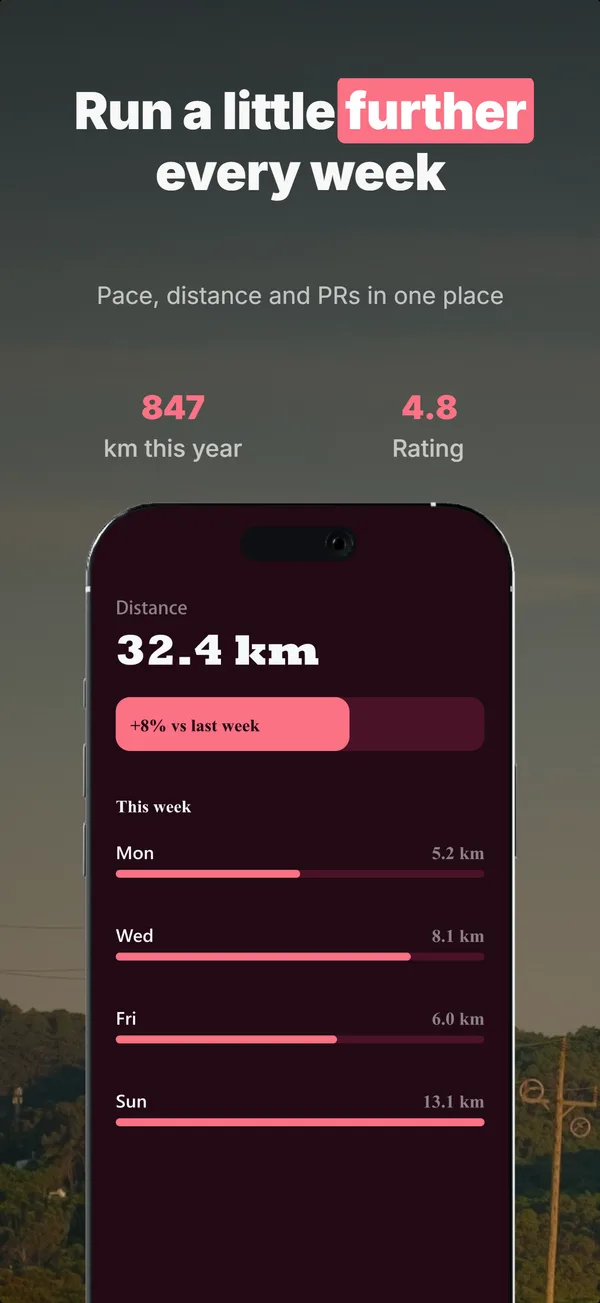

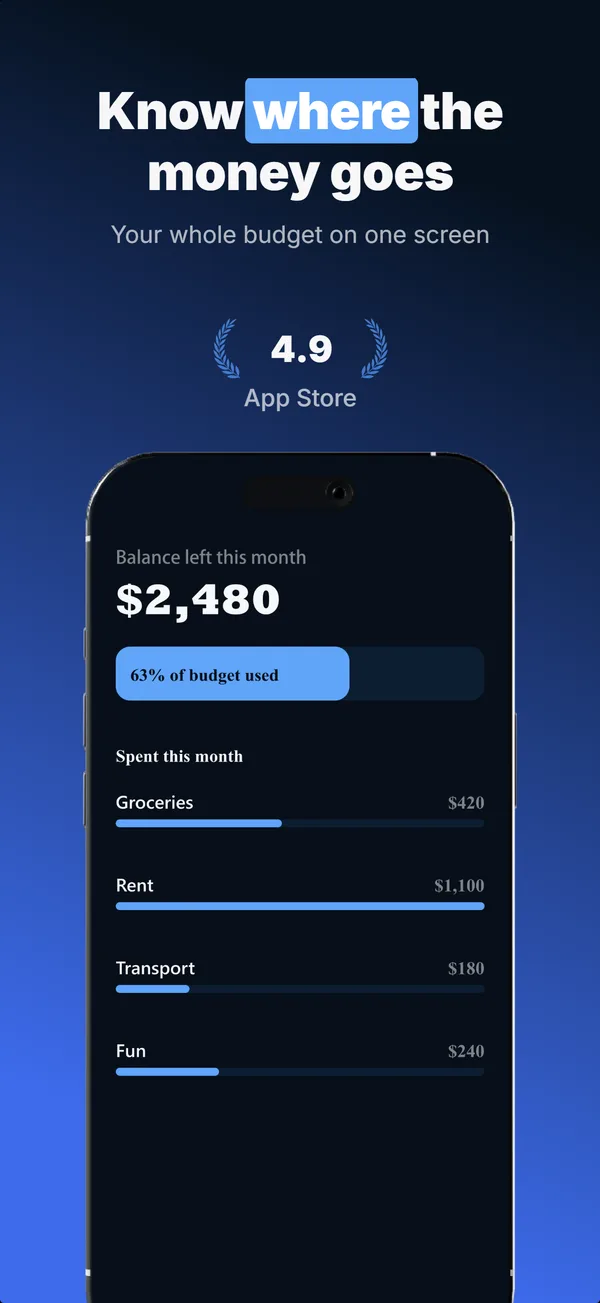
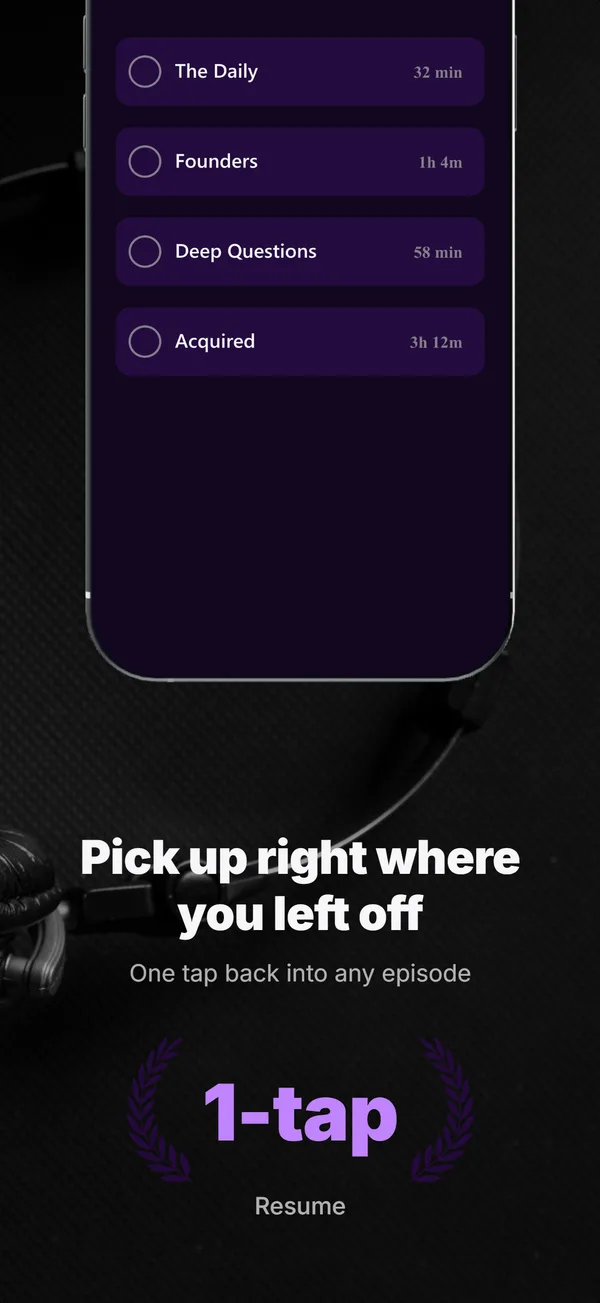
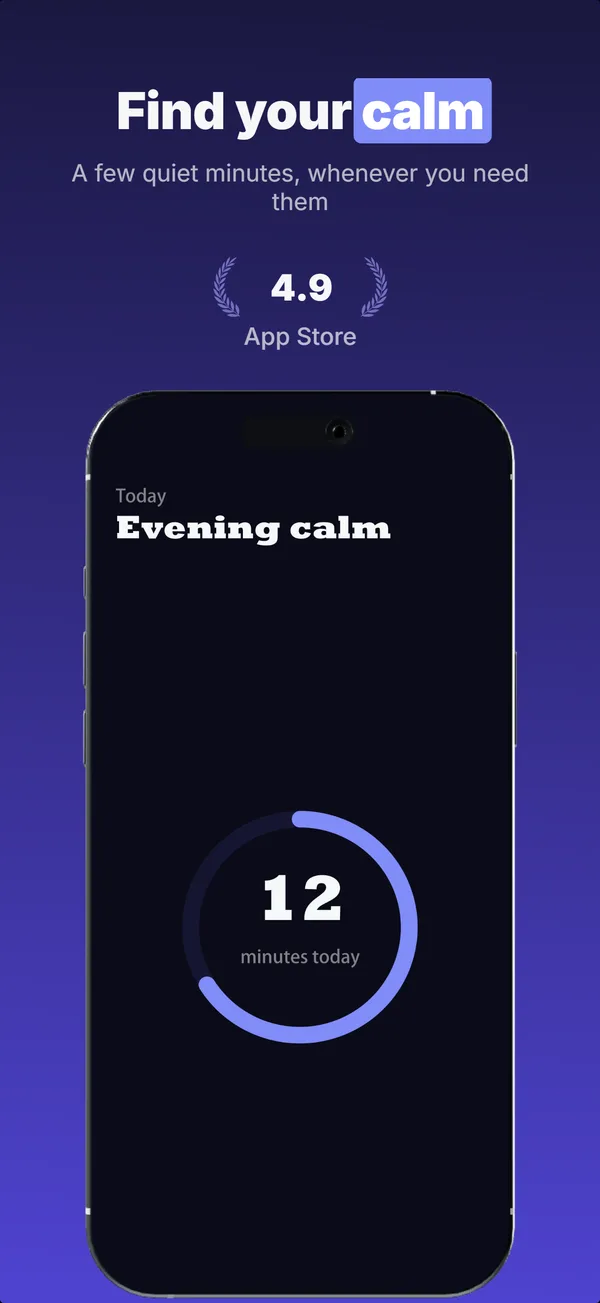
Five servers design screenshots. Four only move pixels.
An MCP server with “screenshot” in the name might drive a simulator, lay out a marketing frame, or upload a finished file to Apple. Only the middle one is a screenshot tool in the sense you mean. These are those five.
| Server | Design from | Store sizes | Localization | Runs on | Access |
|---|---|---|---|---|---|
| @appscreenshotstudio/mcpours | Prompt + your repo | 7, App Store + Play | All 50 App Store languages, in the builder | Any OS | Growth or Pro plan |
| appshots-mcp | Typst templates | 2 required sizes | 39 ASO locales | macOS | Apache-2.0 or MIT, free |
| ButterKit | Prompt | not published | 50 App Store languages | macOS | Free, $99 to unwatermark |
| AppLaunchFlow | Canvas you edit | not published | Any language | Any OS | Free tier includes MCP |
| appscreen-mcp | Editor you script | 6, plus custom | Any language | Not stated | MIT, free |
Design from is the column that matters most and the one nobody publishes side by side. Two of these servers build a layout from a description. Three hand you a template or a canvas and expect you to drive it, which is a different product wearing the same word.
Tool count is not a column, on purpose. It measures how a project split up its API, not what it can do. The two publish servers further down settle it: one exposes 91 tools, the other reaches 923 Apple endpoints through 2. Every tool’s schema also loads into your agent’s context on every turn, so a big number is a running cost as often as a capability. The verified counts sit on each server’s card below.
Verified against each project’s own README, docs or npm entry on 2026-08-13. “Not published” means the project documents the feature without documenting the specifics, which is not the same as a no. StoreScreens was a candidate and is absent because its site returned an HTTP 403, so there was nothing to check.
Which one to install
Every claim behind these is in the table above, with a link to the source on each card below.
You want the brief pulled out of your codebase, and you build on Windows or Linux
@appscreenshotstudio/mcpYou need Play Store sizes as well as App Store sizes
@appscreenshotstudio/mcpYou ship a listing in 40 or more languages
ButterKit, or appshots-mcpYou want free and open source, and Xcode is already installed
appshots-mcpYou want nothing to install and a free tier
AppLaunchFlowYour unreleased UI must never leave the laptop
appscreen-mcpWhat each one is actually good at
Including the thing it does better than we do. A table where our row wins everything would not be worth reading.
@appscreenshotstudio/mcp
Reads your repo for the brief, designs a full set from it, takes your app UI into the frames, renders at exact store sizes.
Where we lose: Localization is where we lose. ButterKit covers all 50 App Store languages and appshots-mcp resolves 39 ASO locales with fallback chains. We translate 15, and that runs in the builder rather than as an MCP tool.
Setup guideappshots-mcp
Rust server that captures clean simulator frames, then composes them with Typst. Aligns captions to ASO keywords.
Where it beats us: The only server here that both captures and composes, it is free and open source, and Typst gives it native RTL and CJK layout.
Check the sourceButterKit
Designs from a prompt, localizes, and pushes the result to App Store Connect without leaving the agent.
Where it beats us: The only server here that composes and publishes, so it is the shortest path from prompt to a live product page. It also covers all 50 App Store languages.
Check the sourceAppLaunchFlow
Hosted canvas driven over a remote MCP endpoint. Edit headlines, swap colours, translate, export.
Where it beats us: MCP access is on every plan including the free one, where ours needs a paid plan. It is also a remote endpoint, so there is nothing to install.
Check the sourceappscreen-mcp
Drives a local browser-based screenshot editor through a scripted API rather than by scraping the DOM.
Where it beats us: Runs entirely on your machine with no account and no upload, so your unreleased UI never leaves the laptop.
Check the sourceThe most literally named server produces a file Apple will not accept
mcp-ios-simulator-screenshot defaults to resize: true with a max_width of 640 pixels. App Store Connect will not accept an iPhone screenshot narrower than 1242.
That is not a bug. Capture servers downscale on purpose, because they exist to let an agent see your app cheaply, and a full-resolution frame burns tokens for no benefit. The default is right for the job it was built for and wrong for yours.
The deeper problem survives even at full resolution: a raw simulator frame has no headline, no background and no device frame. It is a picture of your app, not a marketing asset. That is why these four sit here rather than in the table, and why a fully hands-off pipeline means two servers wired into the same agent.
Capture
Gets raw pixels out of a running simulator. These are built so an agent can see your app, which is not the same as building a file Apple will accept.
Drives the simulator: tap, type, swipe, inspect the accessibility tree, screenshot, record video.
macOS, Xcode, Facebook IDB
Captures the booted simulator screen to a directory. One tool, no configuration to speak of.
macOS, Node 18+
Publish
Pushes finished images to App Store Connect. Every server in this column uploads files it did not create and cannot design.
Uploads finished images to App Store Connect and manages listings, releases, reviews and submissions.
App Store Connect API key and .p8
Exposes Apple's whole API through a search-and-execute pair instead of one tool per endpoint.
App Store Connect API key and .p8
Four calls from your repo to store-ready PNGs
Add this to your MCP client config. Claude Code, Cursor, Windsurf and Codex all read the same shape.
{
  "mcpServers": {
    "appscreenshotstudio": {
      "command": "npx",
      "args": ["-y", "@appscreenshotstudio/mcp"],
      "env": { "APPSCREENSHOTSTUDIO_API_KEY": "ass_live_..." }
    }
  }
}prepare-screenshot-briefReturns a category playbook and the exact list of things to dig out of this repo. Free, and it runs before anything gets designed.
generate-screenshotsDesigns the set from that brief and returns a project with empty device frames.
upload-screenshotsDrops your real app UI into those frames from local file paths.
render-screenshotsExports PNGs at store dimensions. Free, so iterate as much as you want.
The constraints, stated plainly. We design and render. We do not capture from a simulator and we do not upload to App Store Connect, so a hands-off pipeline pairs this with one of the four above. Localization runs in the builder rather than as an MCP tool, and covers all 50 App Store languages. MCP access needs a Growth or Pro plan, because it runs on the same API keys as the REST API.
What comes back from render-screenshots
Real frames from a set designed over MCP, at the dimensions App Store Connect accepts. No mockup, no illustration.
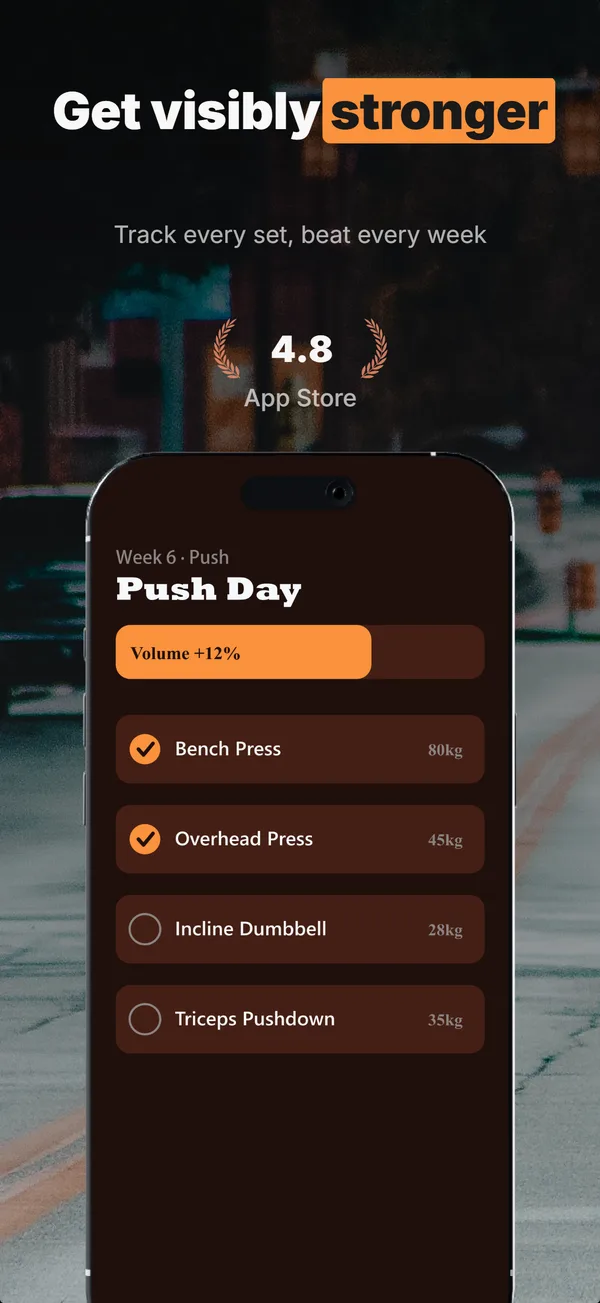
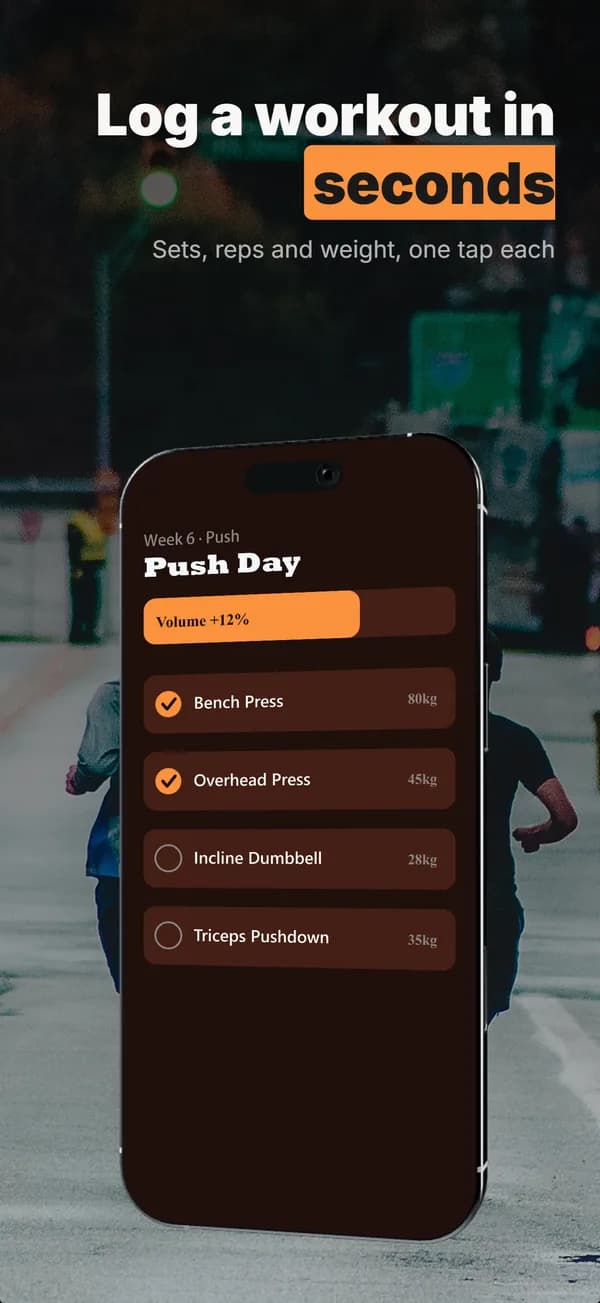
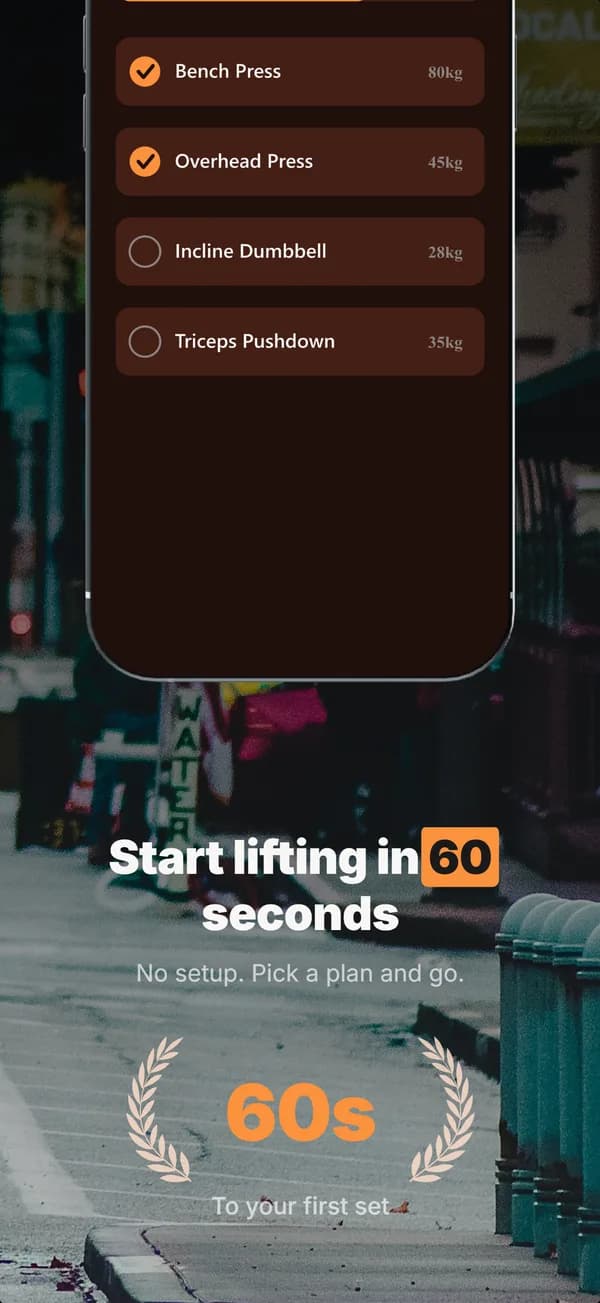
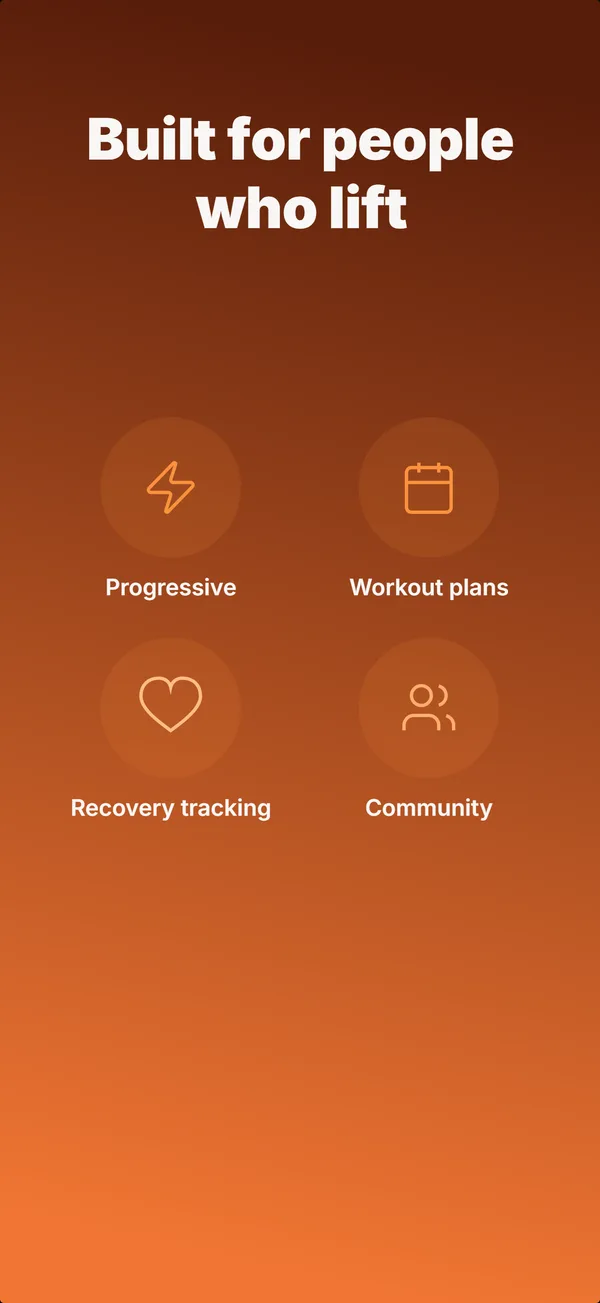
Seven device sizes ship in the server, from iPhone 16 Pro Max at 1260 x 2736 down to Apple Watch Ultra 2 at 410 x 502, including three Play Store sizes. Browse more in the builder.
Questions about MCP screenshots
Does Screen Studio have an MCP server?
Which MCP server should I install for App Store screenshots?
Which App Store screenshot MCP server has the best localization?
Can one MCP server do the whole pipeline?
Why can I not just use an iOS simulator screenshot MCP?
Is fastlane an MCP server?
Do these work in Cursor and Codex, or only Claude Code?
What does the AppScreenshotStudio MCP server cost?
How current is this comparison?
Point your agent at it
Install the MCP server, then ask Claude Code or Cursor for a set. It reads your repo for the brief, seven device sizes, rendering always free.