Free Figma App Store screenshot template
24 frames in 2 styles for iPhone and Android, with a headline slot on every slide. Duplicate it, drop in your screenshots, and export a set App Store Connect accepts.
What's in the template
App Store Connect accepts a fixed list of pixel sizes, and setting frames up from a blank Figma canvas every launch is slow. This template does the scaffolding. You bring the screenshots and the words.
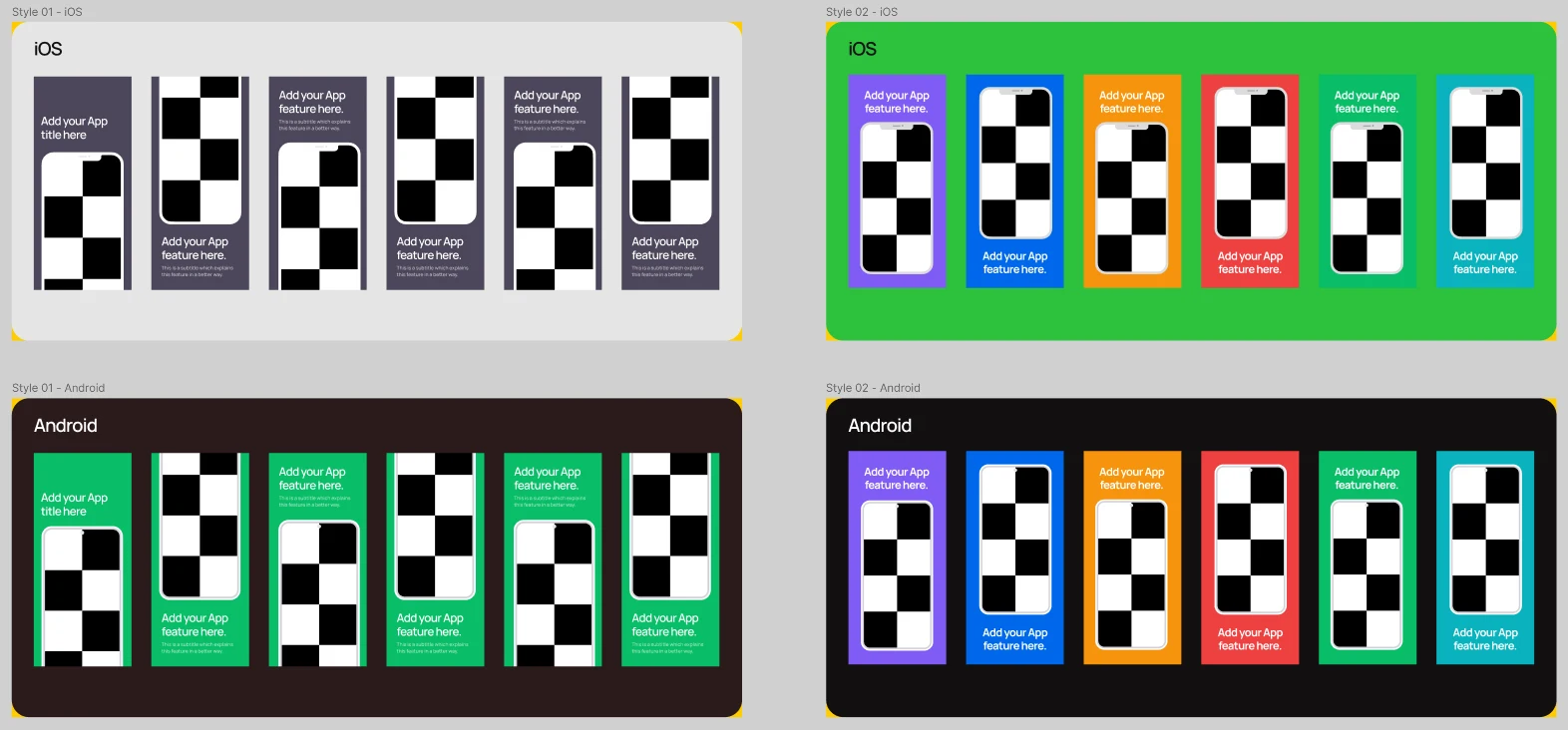
- Style 01 keeps one card color across the set; Style 02 gives every slide its own color
- 6 slides per style for iPhone and 6 for Android, 24 frames in all
- iPhone frames at 1290 x 2796, one of the sizes Apple accepts for 6.9-inch displays
- Android frames at 1280 x 2796 for Google Play
- A phone frame with a placeholder screen to swap for your own screenshot
- An editable headline on every slide, plus a subtitle line in Style 01
Reviewed by AppScreenshotStudio Team, App Store screenshot tooling built for conversion. Last updated September 15, 2026.
How to use it
- 1
Duplicate the file
Open the shared Figma file and duplicate it to your drafts. Figma asks you to sign in to a free account for that.
- 2
Drop in your screenshots
Replace the placeholder screen inside each phone frame with your own app screenshot.
- 3
Edit headlines and background
Write the headline for each slide and set the background. Keep your real app screen the focus of every frame: Apple wants each screenshot to show the app in use.
- 4
Export and upload
Export each frame as a PNG at 1x, so the file keeps the frame size, and upload to App Store Connect or Google Play Console.
The sizes App Store Connect accepts
Apple checks every screenshot against a fixed list of pixel sizes, not an aspect ratio. A frame a few pixels off one of these is refused at upload, even though it looks identical on screen.
6.9-inch display
- 1260 x 2736
- 1290 x 2796
- 1320 x 2868
6.5-inch display
- 1242 x 2688
- 1284 x 2778
Export each frame at 1x so the PNG keeps the frame size; a 2x export doubles it and falls off the list. Google Play works differently and takes a range, 320 to 3840 pixels per side. Every device and slot is in the App Store screenshot size guide.
Or skip the manual layout entirely
A template still leaves you placing every screenshot and writing every caption by hand, per device and per language. AppScreenshotStudio does that part for you: describe your app, see a full set generated with headlines, layouts, brand colors, and panoramic backgrounds, then refine it by chat or on a visual canvas. Store dimensions and keeping real app UI in frame are handled automatically.
Try the chat-based builderFrequently asked questions
Is this Figma App Store screenshot template free?
What sizes does the template include?
How do I use the template in Figma?
Do I have to design each slide by hand in Figma?
Can I use the template for Google Play too?
Screenshots without the canvas
Describe your app, see a full set, refine it by chat. 14-day trial with 25 credits. Card required, cancel anytime before it ends. Plans from $4.99/mo.